
Paint by Numbers Guides

A Creovia beginner guide
How to Crop a Group Photo for Custom Paint by Numbers
A step-by-step crop test for keeping everyone visible in a custom paint by numbers group portrait, from choosing the source photo to checking the u...
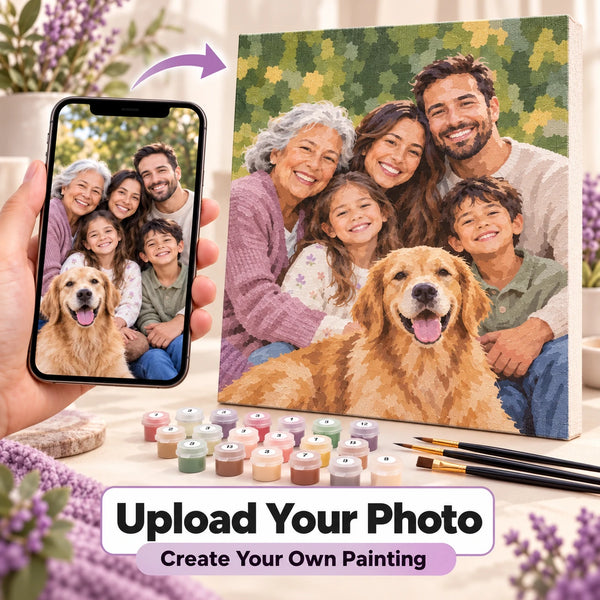
For a custom paint by numbers group portrait, the crop decides how much room each face receives. Start with the clearest original photograph you have, keep every person you want to feature inside the frame, and trim background only until the group is large enough to read at the intended canvas shape. Then check each face in the upload preview. A tight crop can help a clear source; it cannot bring back detail that was never in the photo. Creovia’s Custom Paint by Numbers Kit From Your Photo lets you upload an image and review a preview before ordering.
First, choose the right original photo
Do the crop test on the original file, not a small screenshot taken from a message thread. Look for a frame in which all intended faces are visible, reasonably sharp, and lit in a similar way. If one person is far behind the others or hidden by hair, a hat, or another shoulder, cropping cannot reveal them. Check whether the outer people have enough image around them to leave a comfortable margin after trimming.
Think about who the painting is actually for. A reunion photo may include several guests, but a gift meant to celebrate four family members might work better from a closer picture of those four. You do not have to remove people merely to meet an arbitrary number; you do need the people who matter most to remain legible. If you are choosing between two images, compare faces at the same display size, not only the emotional value of the event. Our broader custom photo selection guide covers lighting, image quality, and subject choice beyond group composition.
Mark the people who must stay in the frame
Before moving a crop box, list the people whose faces must appear in the finished design. Scan left to right and check the edges first. An automatic crop may center the middle of the group while shaving off a person near one side. The goal is not perfect symmetry; it is a composition that preserves the intended people and gives each a meaningful share of the image.
If one person is standing apart from the main cluster, try two versions. In the first, include everyone and reduce empty space above and below. In the second, make a slightly tighter crop and see whether the separated person still reads as part of the group. If including that person keeps every face tiny, the source may not be a good fit for this particular canvas. Choose another photo rather than silently leaving them out of an important gift.
Trim empty background, then stop before faces feel cramped
Large areas of sky, lawn, wall, or floor can make a group look small even when the original file is sharp. Pull the crop inward gradually from the emptiest side. Keep enough of the setting to explain the occasion if it matters: a garden, a doorway, or a holiday tree may be part of why the photo was chosen. Remove space that competes with the people, not context that makes the image recognizable.

Illustrative wide and closer crops of an invented group photo; neither is a customer photograph or Creovia product image.
Now inspect the outer faces. Do not put the crop line through hair, ears, or a cheek just to make central faces slightly larger. Leave a small visual buffer around the group so the people do not feel pressed against the canvas edge. Compare the new crop with the full picture at a similar screen size. The closer crop should make the group easier to read without changing who the photograph is about.
Check the crop against the chosen canvas shape
A photograph may be wide while the canvas option you select has a different shape. That shape change can remove material from the sides or leave more background than expected. The current custom product lists 30 × 40, 40 × 50, and 50 × 60 cm sizes, along with several color and frame choices. Treat those as ordering options, not as proof that any particular group photo will translate well. Check the selected option and the resulting preview on the live product page.
Try a loose crop and a closer crop before uploading. For each version, ask the same three questions: Are all chosen people still present? Are their faces distinct from one another and from the background? Does the scene still look balanced when shown in the product preview rather than expanded to fill your screen? If the answer changes when the canvas shape changes, return to the source image and adjust the framing.
Inspect every face in the upload preview
After upload, pause on the preview. Start at the leftmost person and move across the group. Check eyes, face outlines, and separation between neighboring people. Then inspect the rightmost person and the top and bottom margins. A face that is barely visible when the preview is small is unlikely to become clearer simply because you later choose more colors.

Illustrative preview check with an invented portrait; the screen does not show Creovia’s actual ordering interface.
The preview is a decision aid, not a promise that the painted result will reproduce each face exactly. Creovia’s listing says fine details and colors may vary as the photo becomes a paint by numbers design. If a face blends into a dark background or another person, compare a brighter original, a different group pose, or a less crowded image. Increasing canvas size can give an already clear source more room, but it cannot repair motion blur, a hidden face, or missing pixels. The same is true of choosing 36 or 48 colors instead of 24.
A three-crop test before you order
- Wide version: Keep the whole group and meaningful setting. Note whether faces look too small.
- Balanced version: Remove unused sky, floor, or side space while keeping each face and a little edge margin.
- Close version: Bring the group forward as far as you reasonably can without clipping a person or losing important context.
View all three at roughly the same on-screen size. In most cases, the balanced version is a useful starting point, but the best choice is whichever version keeps the intended people clear in the actual upload preview. If none does, choose a new source photograph. This test is faster than trying to rescue a poor group image by changing kit options late in checkout.
Final checks before uploading a family or group photo
Use an image you are allowed to upload, and consider whether the people shown would be comfortable having it turned into a personal craft project. Keep the full original file until the order is complete so you can compare the crop and preview again. Confirm the current size, color, and frame selections on the custom kit product page; its numbered canvas, pre-mixed acrylic paints, and brushes make this a DIY project, not a finished portrait supplied by the store.
If this is a gift and you are still deciding whether the recipient should paint the kit or receive artwork you complete yourself, see the custom gift decision guide. For the group photo itself, the key is simpler: choose a clear original, give every important face enough space, and approve the composition you actually see in the upload preview before ordering.
Group photo crop FAQ
How many people can I include in a custom paint by numbers group photo?
There is no reliable universal number. What matters is whether every person you want to feature has a clear, visible face in the source image and remains easy to distinguish in the crop and product preview. A crowded or distant photo may need a different source image.
Should I crop out all the background?
Usually no. Remove background that makes the group too small, but keep enough space around the outer people and any setting that gives the memory meaning. Compare the tighter version with the original before uploading.
Can a larger canvas fix faces that are blurry in the photo?
No. A larger canvas can give a clear image more room, but it cannot recover face details missing from the original file. Start with a sharper photo or a closer shot if the faces are soft or tiny.
Will choosing more colors make every face look exactly like the photograph?
No. Creovia offers 24, 36, and 48 color choices for the current custom kit, but color count does not recreate hidden details or guarantee photographic likeness. Judge the actual upload preview, and expect fine details and colors to vary in the painted design.
What if someone stands at the edge of the picture?
Keep their whole face inside the crop with a little space beyond it. If the intended canvas shape forces that person out, try a less tight crop or another photo. Do not accept a preview that cuts off a face you meant to include.
Explore this topic
A kit to explore
Compare the current artwork and options on each product page before choosing.

Custom Paint by Numbers Kit From Your Photo
$34.99
Turn a favorite photo into a personalized paint by numbers kit—and enjoy creating a keepsake that is uniquely yours. Upload your own pet, family, couple, portrait, or travel photo Choose...
Find your next project
Explore paint by numbers kits.
Custom Paint by Numbers Kit From Your Photo
$34.99

Moonlit Ocean Serenity Paint by Numbers Kit
$29.99

Herb Bundles in a Spell Kitchen Paint by Numbers Kit
$29.99

Chalk Cliffs Sea Grass Paint by Numbers Kit
$29.99

Woman With Teacup And Flowers Paint by Numbers Kit
$29.99

Yellow Mimosa In Blue Vase Paint by Numbers Kit
$29.99

Yellow Sunflowers And Daisies Paint by Numbers Kit
$29.99

